Release 12.4.9
Copy Rates from One Rate Plan to Another
Stay is enhanced to allow users to copy rates from one rate plan to multiple rate plans through the Daily Rates tab in the Rates screen (Settings ➜ Rates ➜ Daily Rates).
Feature Setting
The following new feature setting has been added to enable users to copy rates from one rate plan to multiple rate plans:
-
Name: Copy Rates
-
Value: Must be enabled
-
Comments: License is not required
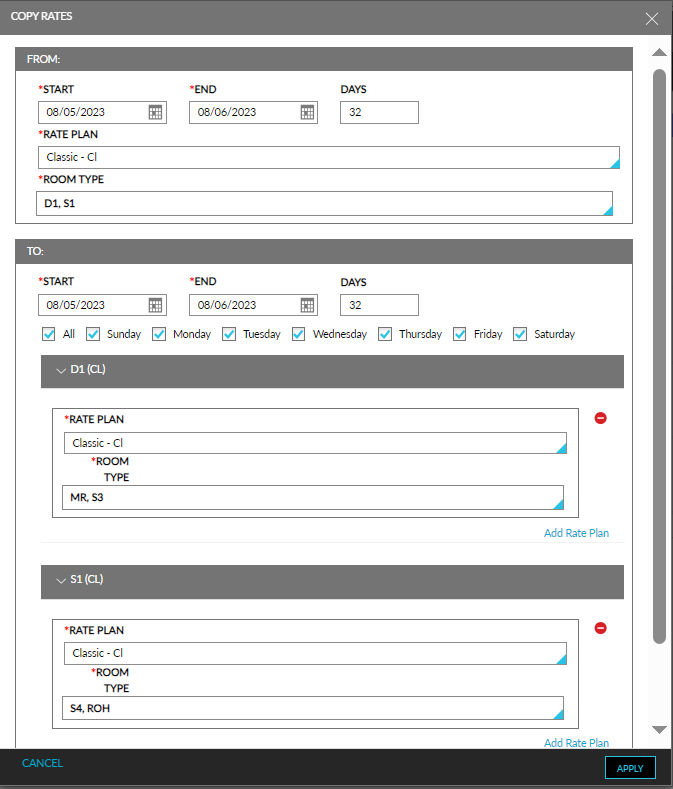
When the feature setting is enabled, users can copy rates by selecting the required cells in the Daily Rates tab and clicking the Copy Rates option under More. This option will be available for selection even if no cell is selected. When this option is selected, the Copy Rates screen appears that displays the following two sections:
-
From
-
To
From Section
In this section, users can select the rate plan, room type, and the dates from which the rates must be copied.
When users select the required cells and click the Copy Rates option, the following data is pre-populated in this section:
|
|
|---|---|
|
|
|
|
|
|
|
|
|
|
Users can modify the values that are pre-populated if required.
To Section
This section allows users to select the destination rate plan, room type, and dates to which the rates must be copied.
This section displays the following fields for which the required values must be selected:
|
|
|---|---|
|
|
|
|
|
|
|
|
For each room type selected in the From section, a sub-section is displayed under an accordion. In this sub-section, users can select the required rate plans and room types to which the rates must be copied. Users can add multiple rate plans using the Add Rate Plan option.
The rate plans and room types selected in the From section cannot be selected in the To section, that is, the source and the destination cannot be the same. Also, users cannot select the same combination of rate plan and room type using the Add Rate Plan option.
The rates are copied to the destination in a recurring series, that is, if the user has copied rates for 5 days and pasted to 10 days, the rates are copied for the first 5 days and for the next 5 days the rates are copied again starting from the 1st value.
Once the rates are copied successfully, the message, Rates copied successfully, is displayed and if any failure occurs when copying, the number of days for which the rates were not copied is displayed as a banner. When users click the Click here to view the result hyperlink in the banner, the Copy Rates Result pop-up screen appears, that displays the results of the rates that were copied. After the rates are copied successfully, the updated rates are displayed in the Daily Rates tab.
To support this enhancement, a new option, Copy Rates, has been added to the Daily Rates tab in the Rates screen (Settings ➜ Rates ➜ Daily Rates) that allows users to copy rates from one rate plan to multiple rate plans.